Google, Microsoft 365, and Power BI connected to the official environment

Bring documents, libraries, and reports into the same communication, knowledge, and governance flow your team already consults in Vindula.

Google Drive • OneDrive • SharePoint • Power BI • Teams and Outlook by scope

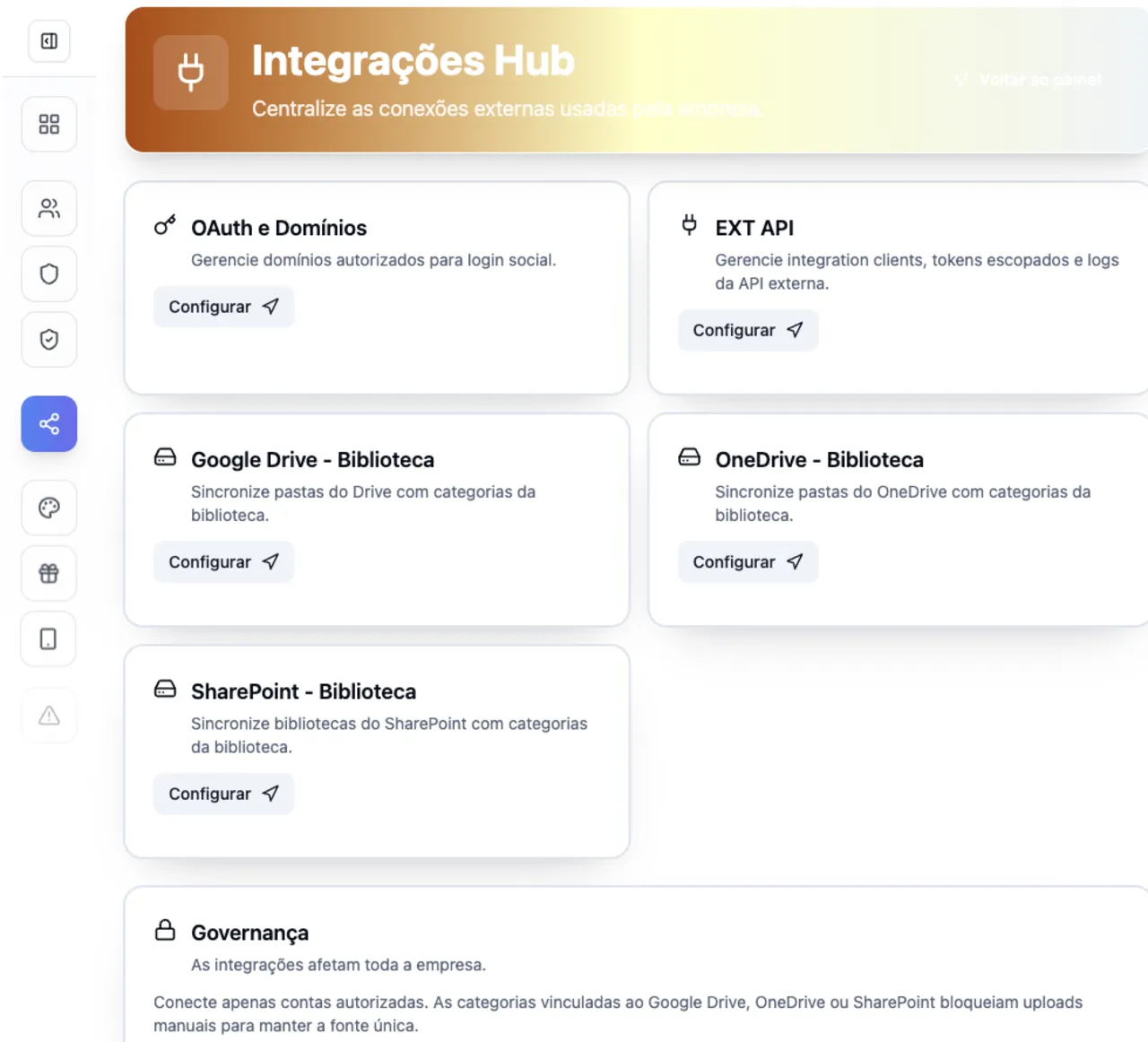
Vindula integrations hub screen with Google Drive, OneDrive, SharePoint, and external API

The hub helps IT and business owners centralize providers and keep governance in place before each connection.

Module capabilities

What integrations organize

Coverage combines document management, Microsoft and Google providers, Power BI reports, and access controls to keep information in the right flow.

Google Drive and document management

The library can connect to Google Drive to work with folders, categories, and official documents.

  • Category-level linking

    Library categories can be linked to Drive folders to preserve context and organization.

  • Link or import mode

    Operations can keep files as governed links or import documents into the library depending on the project design.

  • Controlled sync

    Manual and scheduled syncs help keep documents updated without duplicating management outside the flow.

  • Drive-created documents

    When configured, the library can start new documents in linked Google Drive folders.

Microsoft 365

OneDrive, SharePoint, and Microsoft 365 routines can enter the same governed platform flow.

  • OneDrive and SharePoint

    The library can connect drives, sites, libraries, and folders to guide access and sync.

  • Sites, drives, and folders

    Configuration supports selecting the source, root folder, and category links in the library.

  • Teams and Outlook when needed

    Microsoft 365 projects can use connected routines for notifications, email, or calendar according to the approved scope.

  • Integration health

    Sync failures and recoveries can notify the people responsible for operations.

Power BI in internal content

BI reports can sit closer to the communication and knowledge employees consult.

  • Workspaces and reports

    The integration can list workspaces and reports available to the authorized Microsoft account.

  • Embedded report

    Reports can be added to internal content so people consult them in the right context.

  • Authorized access

    Viewing uses Microsoft authorization and respects the access granted to reports and workspaces.

  • Decision context

    Indicators can accompany updates, knowledge pages, or content explaining what needs to be done.

Connection governance

Permissions, audit, and owner-based configuration help avoid loose integrations.

  • OAuth consent

    Connections go through provider authorization and remain controlled by authorized administrators.

  • Operational permissions

    Configuration, sync, category linking, and report usage depend on user permissions.

  • Change audit

    Connections, settings, links, syncs, and imported documents leave an operational trail.

  • Clear owners

    The company defines who manages providers, folders, categories, reports, and connected routines.

Operational control

What the company starts controlling across connections

The goal is to bring external providers closer to the official environment without losing source, authorization, context, and ownership.

Connect Google Drive, OneDrive, and SharePoint to the library without turning official documents into loose links.

Define categories, folders, file sources, and sync mode by operational need.

Embed Power BI reports in internal content with context and Microsoft authorization.

Separate who can configure providers, link categories, sync documents, and use reports.

Track failures, recoveries, imports, and relevant changes with an audit trail.

Keep each provider as the source when the company already uses Google or Microsoft day to day.

Best fit

Where integrations usually make the most sense

Good fit appears when the company already has information in Google or Microsoft but needs it to reach employees with context and governance.

01

Companies already using Google Workspace

When documents stay in Drive but need to appear in the official channel with categories and governance.

02

Operations using Microsoft 365

When OneDrive, SharePoint, Teams, Outlook, and Power BI are already part of the company routine.

03

Distributed document libraries

When different areas keep their own folders and the company needs one official consultation point.

04

Indicators that need to become action

When Power BI reports need to arrive alongside guidance, an update, or an execution plan.

FAQ

What usually comes up in integration conversations

Objective questions to separate connection, governance, file source, and report usage day to day.

Does Vindula replace Google Drive, OneDrive, or SharePoint?

Not necessarily. Vindula organizes access, context, and governance inside the official environment while the provider can remain the source of the files.

Does the integration import files or only create links?

It depends on configuration. The library can work with category links and, when defined in the project, with import and sync for supported documents.

How does Power BI work inside Vindula?

The integration uses Microsoft authorization to list available workspaces and reports. Reports can be embedded into internal content for consultation in the right context.

Who can configure integrations?

Configuration depends on administrative permissions. The company defines who can connect providers, select folders, link categories, and manage reports.

Do I need to migrate every document to start?

No. The project can start with priority categories, folders, or reports and evolve as operations gain clarity.

Want to see how Google, Microsoft 365, and Power BI connect to Vindula?

The guided demo shows how categories, folders, reports, permissions, and sync can fit your company design.