Operations by groups
Dashboard with 3 online TVs, 2 active groups, and 2 published schedules for reception, cafeteria, and North job site.
Ideal context: communications teams track groups, TVs, and attention points before publishing new content.
Organize screens by group, publish schedules, and run content in TV mode for receptions, cafeterias, plants, and job sites. Bring communication, daily services, training reminders, and critical notices to the channel people actually see.
Reception • Cafeteria • Job site • Safety briefings • Daily services • Player
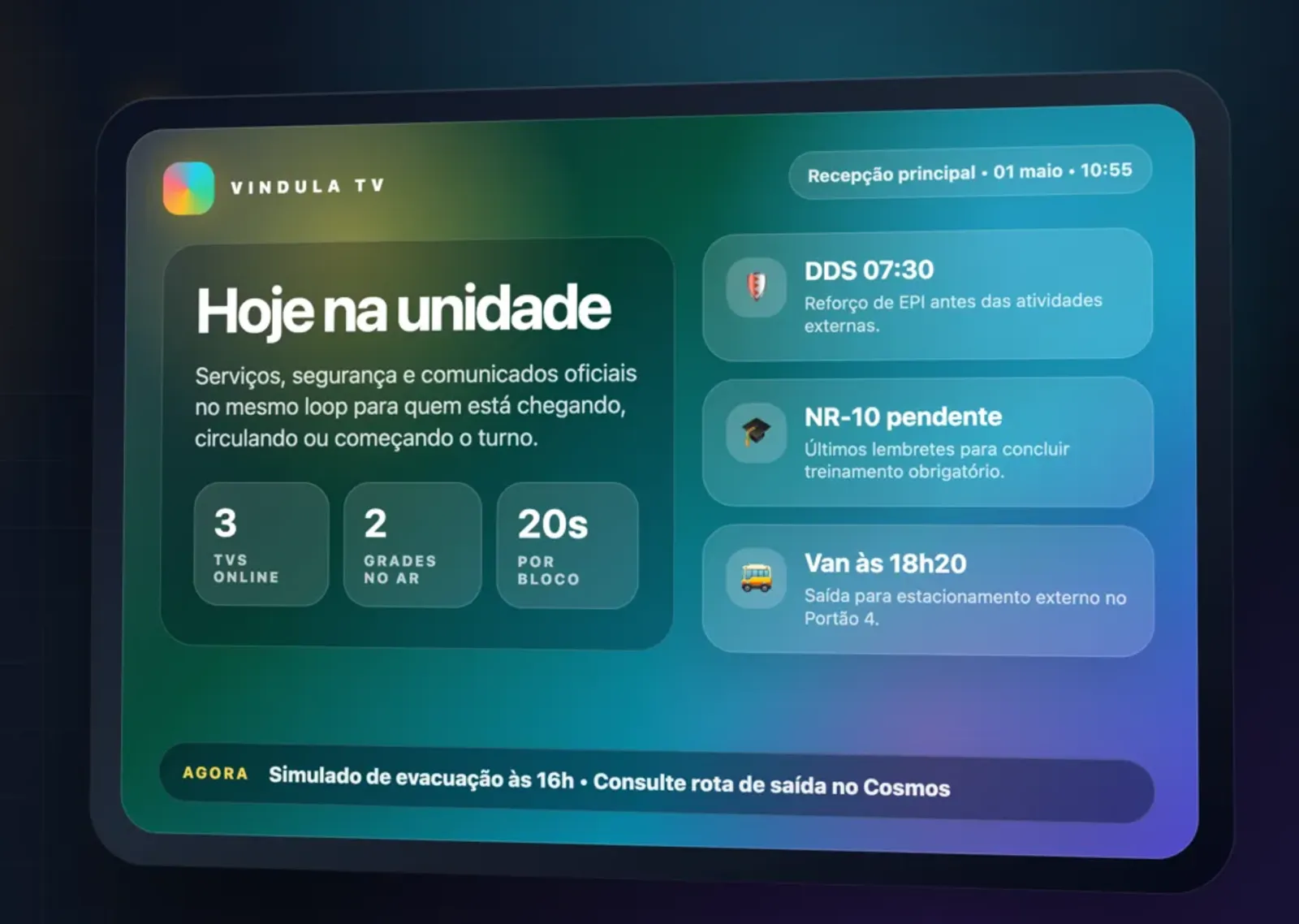
Vibrant screen for reception, cafeteria, and operations: daily services, safety briefings, training reminders, and critical notices in a loop.
Real use cases
This showcase starts from a realistic operation: reception, cafeteria, North job site, safety briefings, daily services, and safety indicators shown on shared screens.
Show daily services, visitor guidance, useful links, and quick notices where people move without opening the feed.
Safety briefings, PPE, transport, weather, and field owners appear at shift start without relying on posters or side groups.
Reinforce training, safety, important dates, and official announcements on screens that complement the digital channel.
Teams publish a schedule and change content in Cosmos instead of manually copying files to each TV.
Visual storytelling
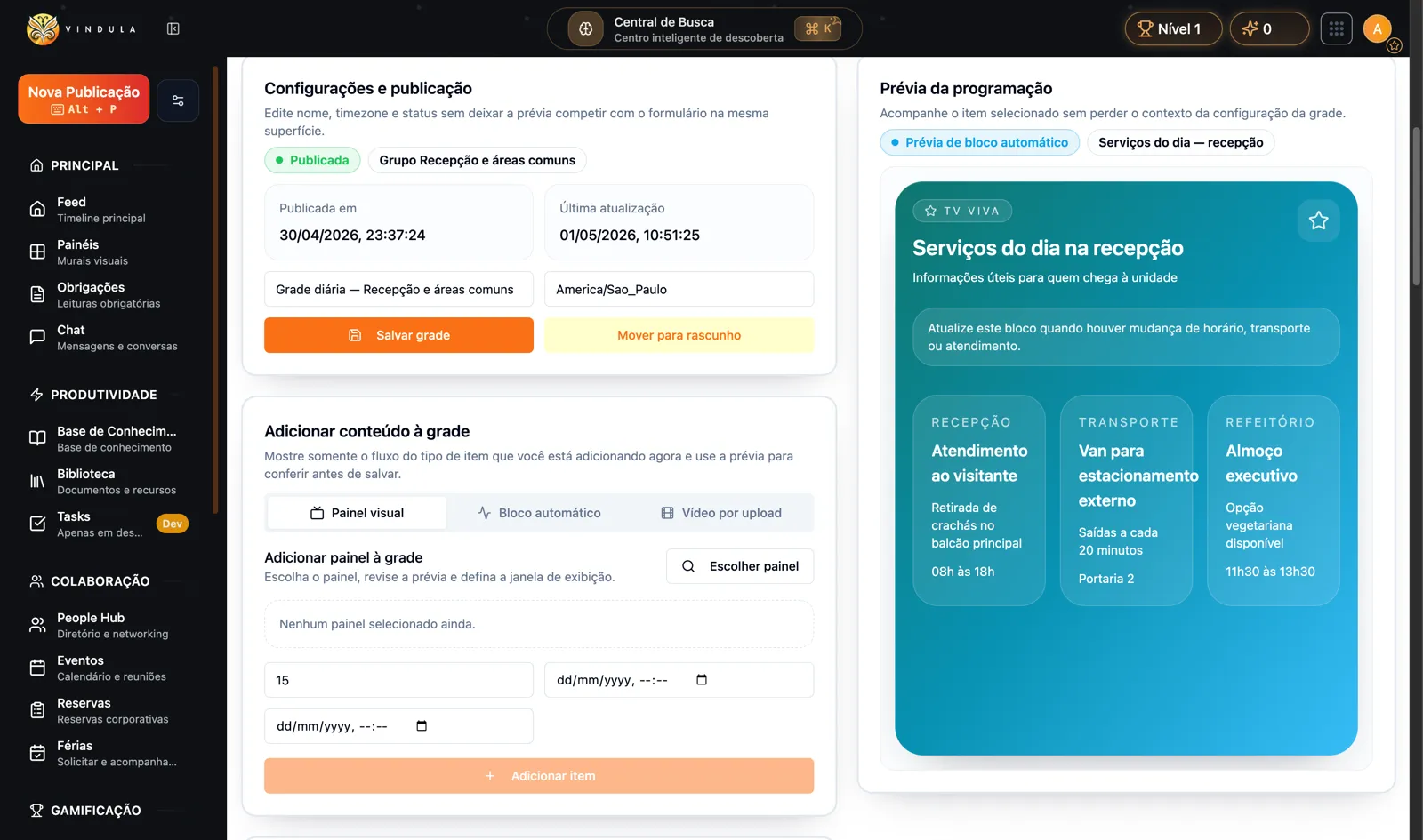
The screens show groups, online TVs, published schedules, content preview, and a TV-mode player with daily reception services.
Dashboard with 3 online TVs, 2 active groups, and 2 published schedules for reception, cafeteria, and North job site.
Ideal context: communications teams track groups, TVs, and attention points before publishing new content.
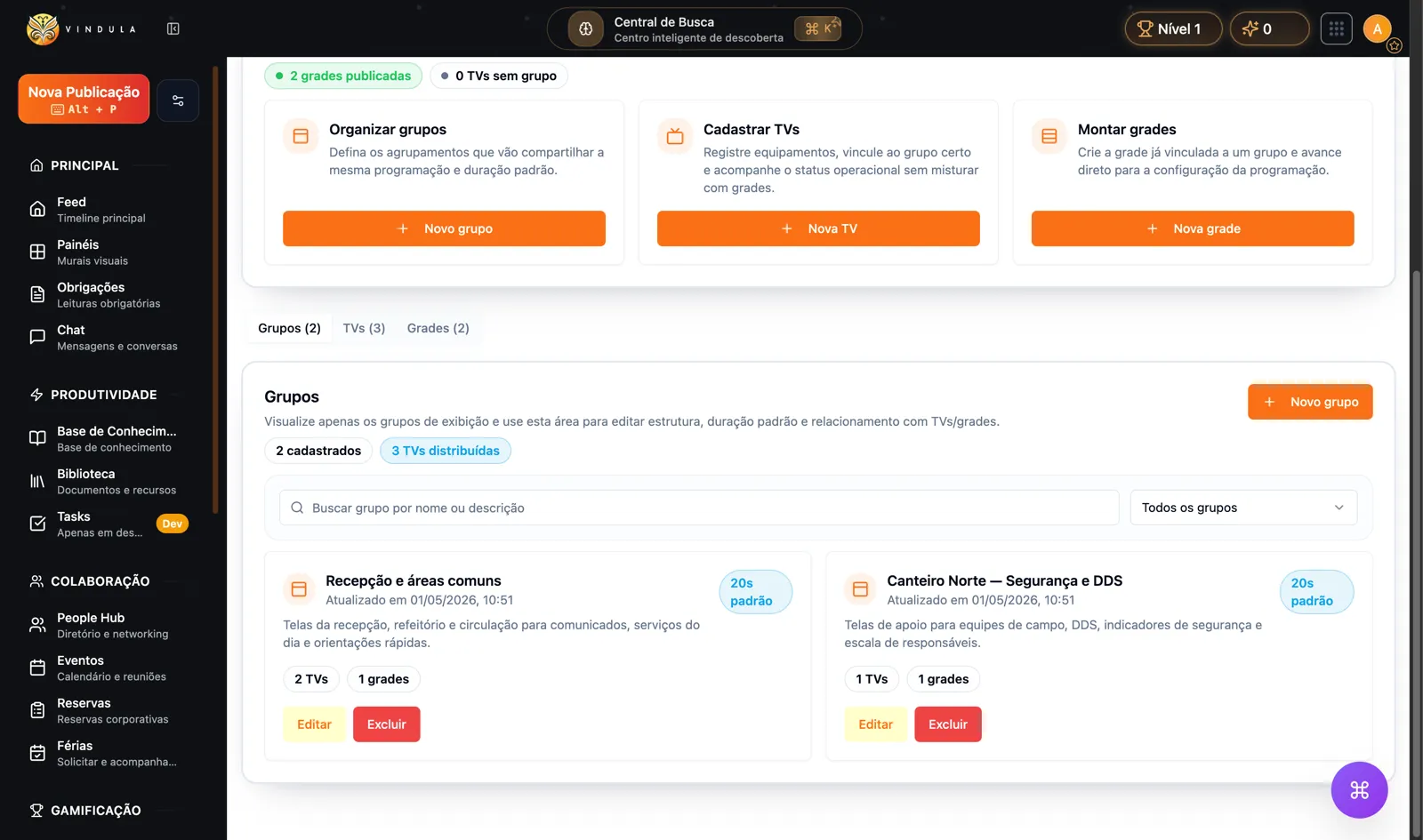
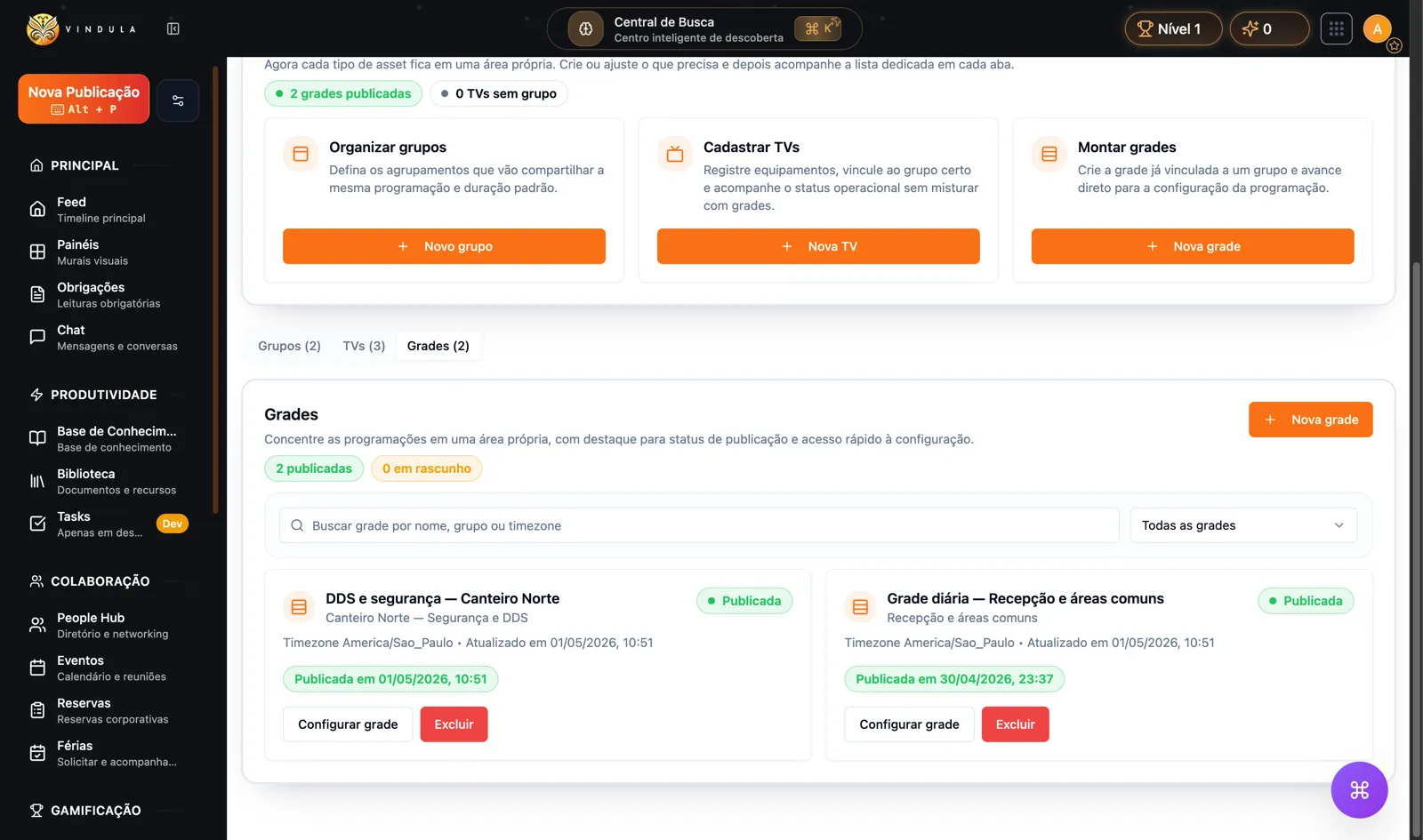
The screen separates schedules by group and status, with quick access to configure each physical context.
Ideal context: a manager checks whether reception and North job site already have published schedules before the shift starts.
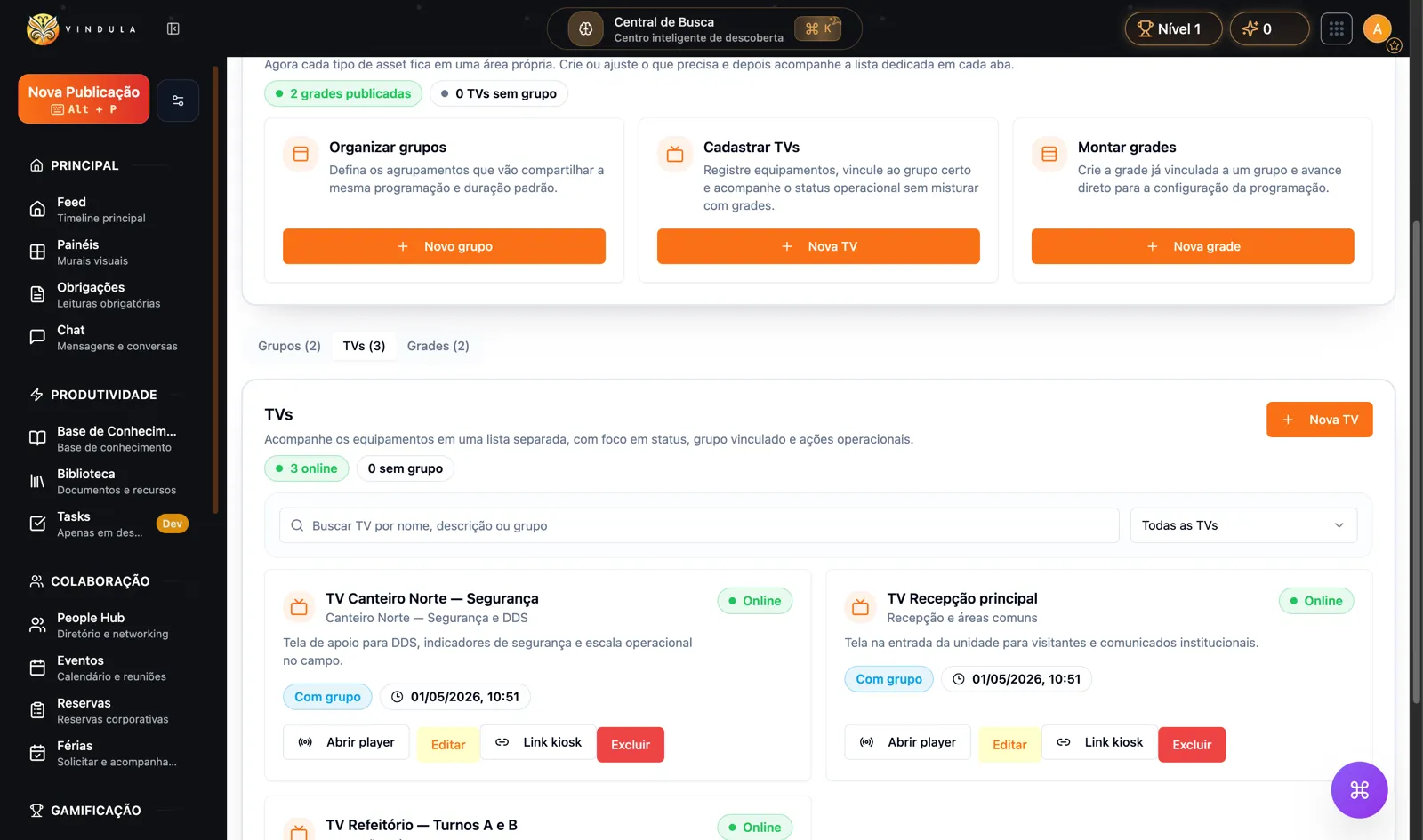
Each device shows group, status, and player access: main reception, cafeteria, and North job site.
Ideal context: operations quickly identify which screens are online and which schedule each one should play.
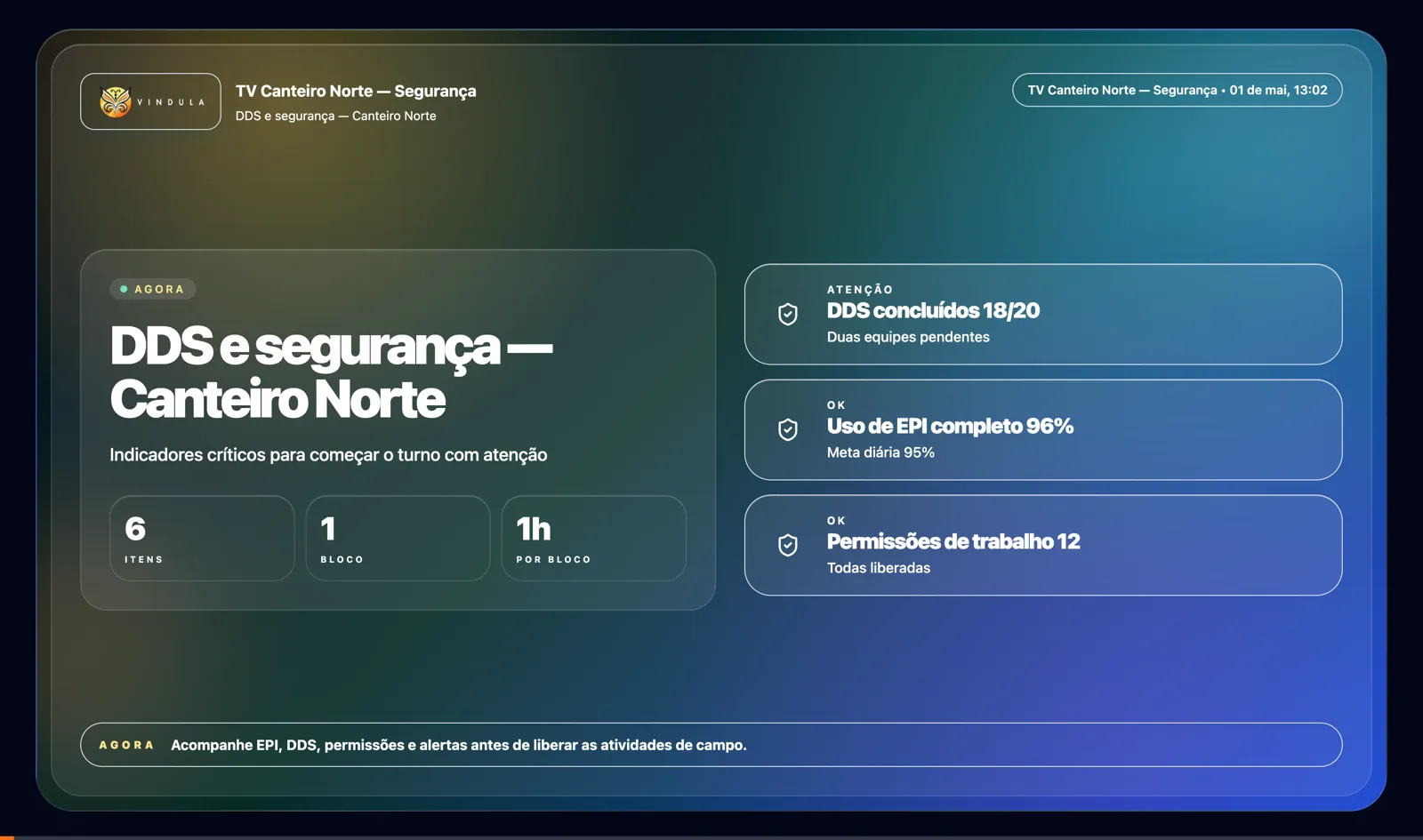
The real player shows an eye-catching safety briefing schedule for the North job site, with critical indicators before the shift starts.
Ideal context: the shift starts with safety briefing, PPE, permits, weather alerts, and brigade status visible in the real TV player.
Module capabilities
Corporate TV combines screen registry, groups, schedules, smart items, video, per-item duration, and continuous playback.
Register devices, group them by physical context, and track status before publishing content.
TV devices
Each screen has name, description, group, status, and player access.
TV groups
Separate reception, cafeteria, plants, job sites, and common areas without mixing schedules.
Operational status
Track online TVs, screens without group, published schedules, and attention points.
Playback link
Each device can open the linked schedule player for testing or display.
Build schedules with items, duration, publication status, and visual preview before turning on the screen.
Schedules by group
Reception and North job site can have different schedules, each published to its group.
Smart items
Daily services, rosters, indicators, useful links, and messages can become TV blocks.
Uploaded videos
When a campaign needs rich media, the schedule supports uploaded video items.
Item duration
Each item defines how long it stays on screen before rotation.
Continuous playback, readable on large screens, designed for monitors without constant interaction.
Automatic loop
The schedule rotates continuously according to item order and duration.
Preview before publishing
Teams check the selected block without leaving schedule configuration.
Official content
TV reinforces communication, useful documents, training reminders, and Cosmos routines.
Module permissions
Viewing, managing TVs, groups, schedules, and publishing follow module controls.
Operational control
The module fits when each screen needs a group, published schedule, valid content, duration, and clear ownership.
Know which screens are online and which group they belong to.
Publish one schedule per physical context without mixing reception, cafeteria, and job site.
Replace flash-drive notices with content updated in Cosmos.
Run daily services, rosters, indicators, and useful links in the same loop.
Check preview, duration, and status before putting the screen into operation.
Connected to the rest of the platform
Corporate TV does not need to become a parallel bulletin board. It reinforces announcements, training reminders, useful documents, and daily services inside the same Cosmos operating environment.
Important announcements gain reinforcement in receptions, cafeterias, job sites, plants, and common areas.
The physical screen becomes an extension of the official channel, not a parallel board or loose file.
Training campaigns and reminders enter the loop when they need to appear for shift workers.
Useful links, policies, and support materials can appear as shortcuts in the schedule.
Best fit
The best rollout does not start with aesthetics. It starts with reception, cafeteria, plant, job site, or common area where the feed does not reach strongly enough.
When visitors and employees in transit need to see services, notices, and quick guidance.
When not everyone follows email, chat, or feed during the shift.
To reinforce PPE, indicators, rosters, and critical notices before field activities start.
To keep dates, training, announcements, and reminders alive without depending on manual file changes.
FAQ
Answers to align scope: what the TV shows, how schedules work, how to start, and which limits to keep clear.
No. Visual panels are one content type. Corporate TV organizes display operations: TVs, groups, schedules, item duration, and TV-mode player.
Yes. The schedule supports uploaded video, in addition to visual panels and smart items such as daily services, rosters, indicators, and useful links.
Each device is linked to a group. The group has a published schedule, and the player runs valid items according to configured order and duration.
Start with a place that has clear pain: reception, cafeteria, plant, or job site. Define group, TVs, schedule, first blocks, and owner for keeping the schedule updated.
Not on this page. This positioning covers TV, group, schedule, content, and player management. Advanced playback metrics and emergency takeover are outside this showcase scope.
In the guided demo, we start from a real screen in your operation and build the group, schedule, content, and player to validate the first loop in Cosmos.